Control panel
Pterodactyl control panel, included with every server
Live console, file manager, SFTP, schedules, staff permissions, databases and port management. All of it runs in your browser at panel.cohost.au.
Console and power
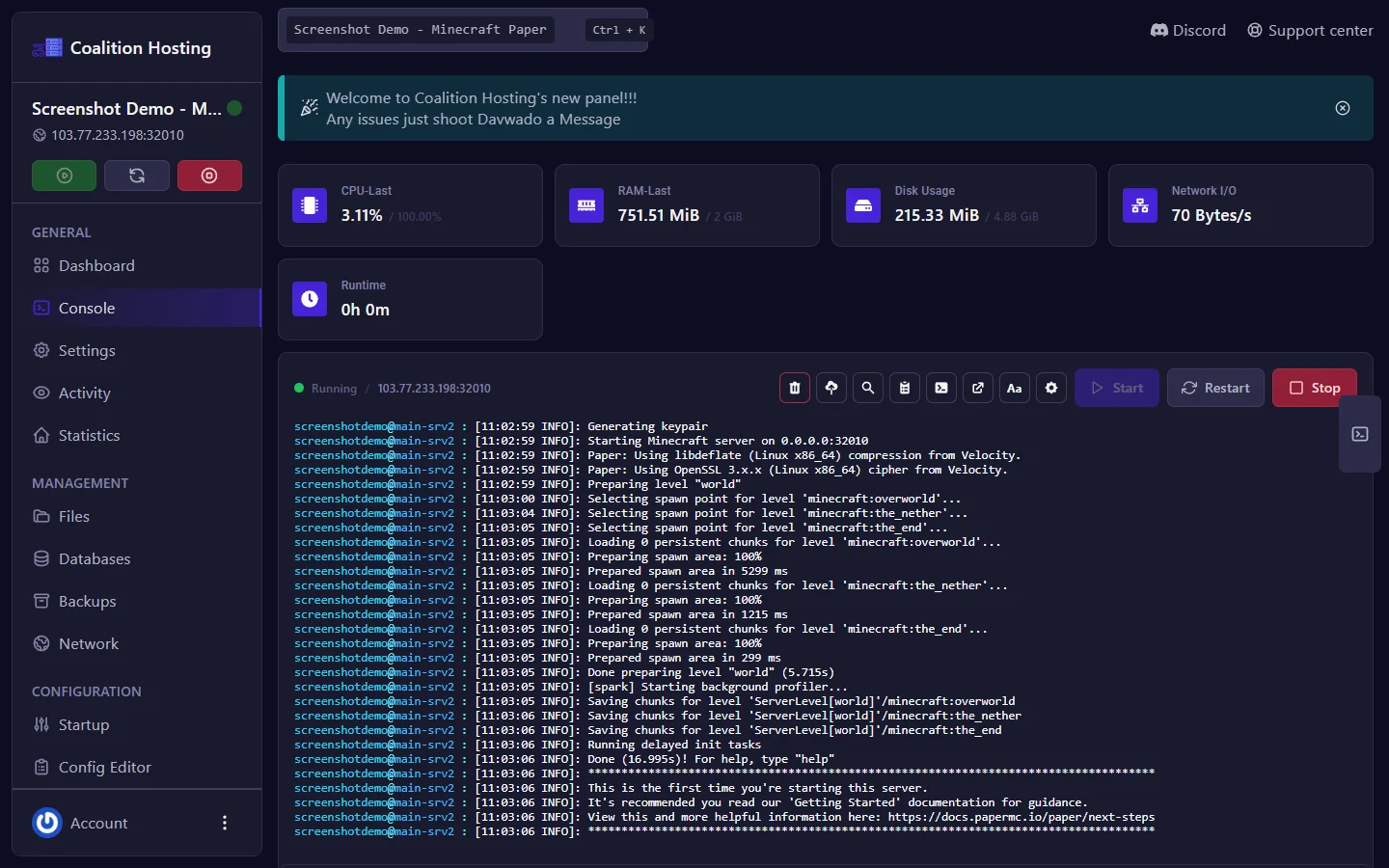
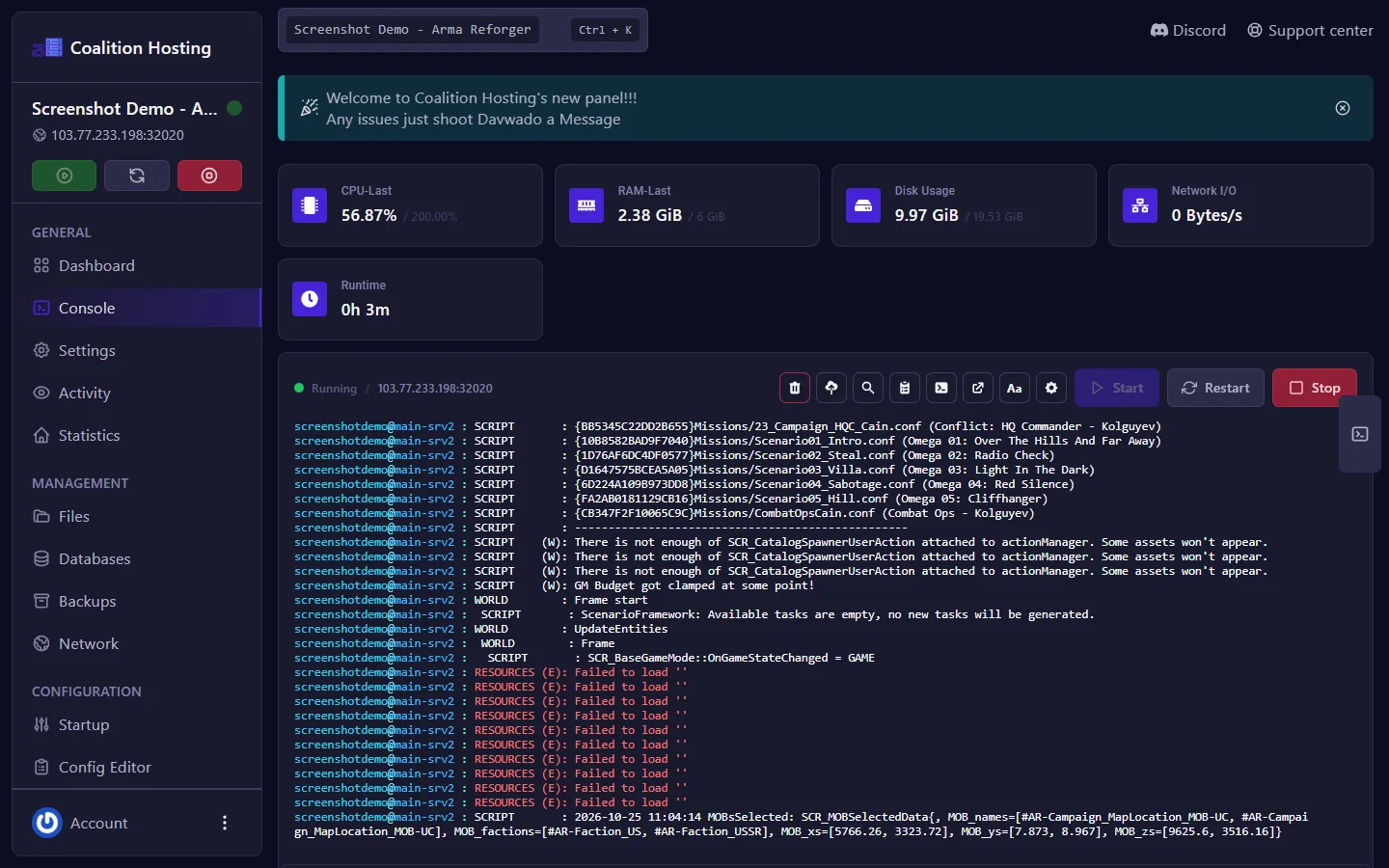
Live consoleRun commands and read the server log in real time.
Start, stop, restart, killStop shuts the game down cleanly. Kill forces it off.
Live graphsCPU, memory and network use, plus disk used.
Activity logWho started the server, edited a file or changed a setting, and when.
Files and SFTP
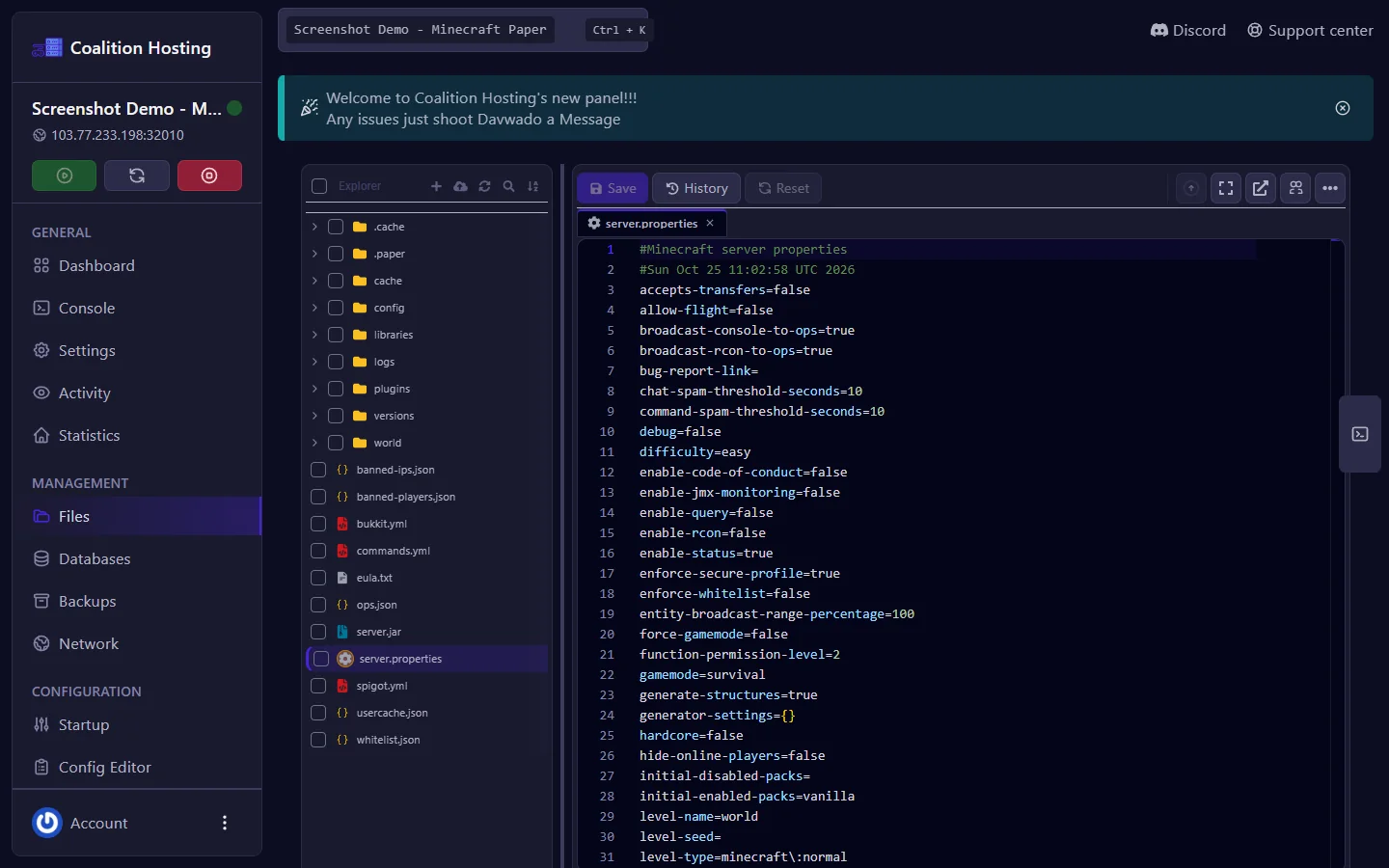
File managerBrowse, edit, create, rename, move, copy and delete files and folders.
Drag and drop uploadsUpload mods, maps and configs straight from your browser.
Archive and extractZip folders for download or unpack uploaded archives on the server.
SFTPWorks with FileZilla, WinSCP and any SFTP client. Address, port and username are on the Settings page.
Config editor
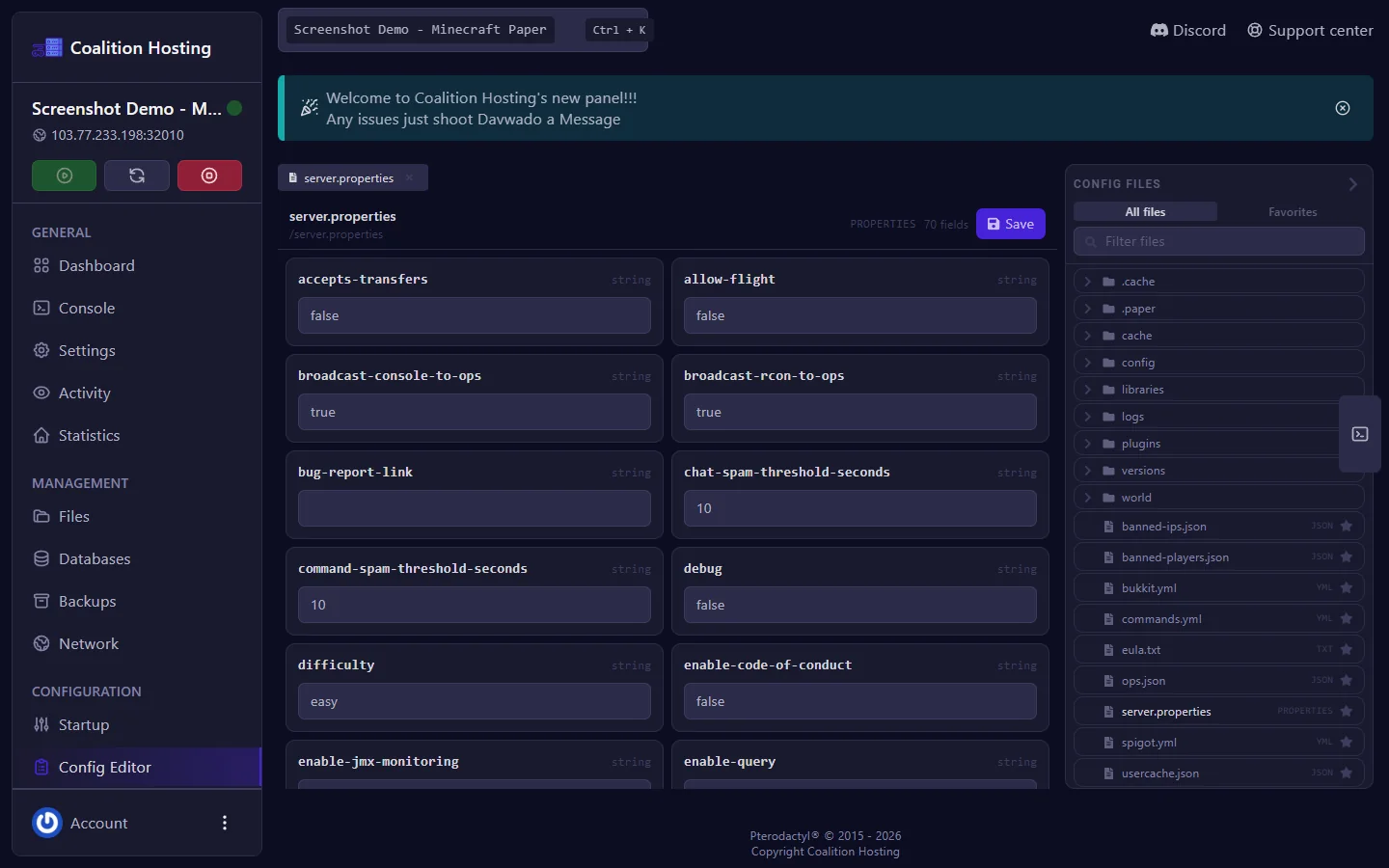
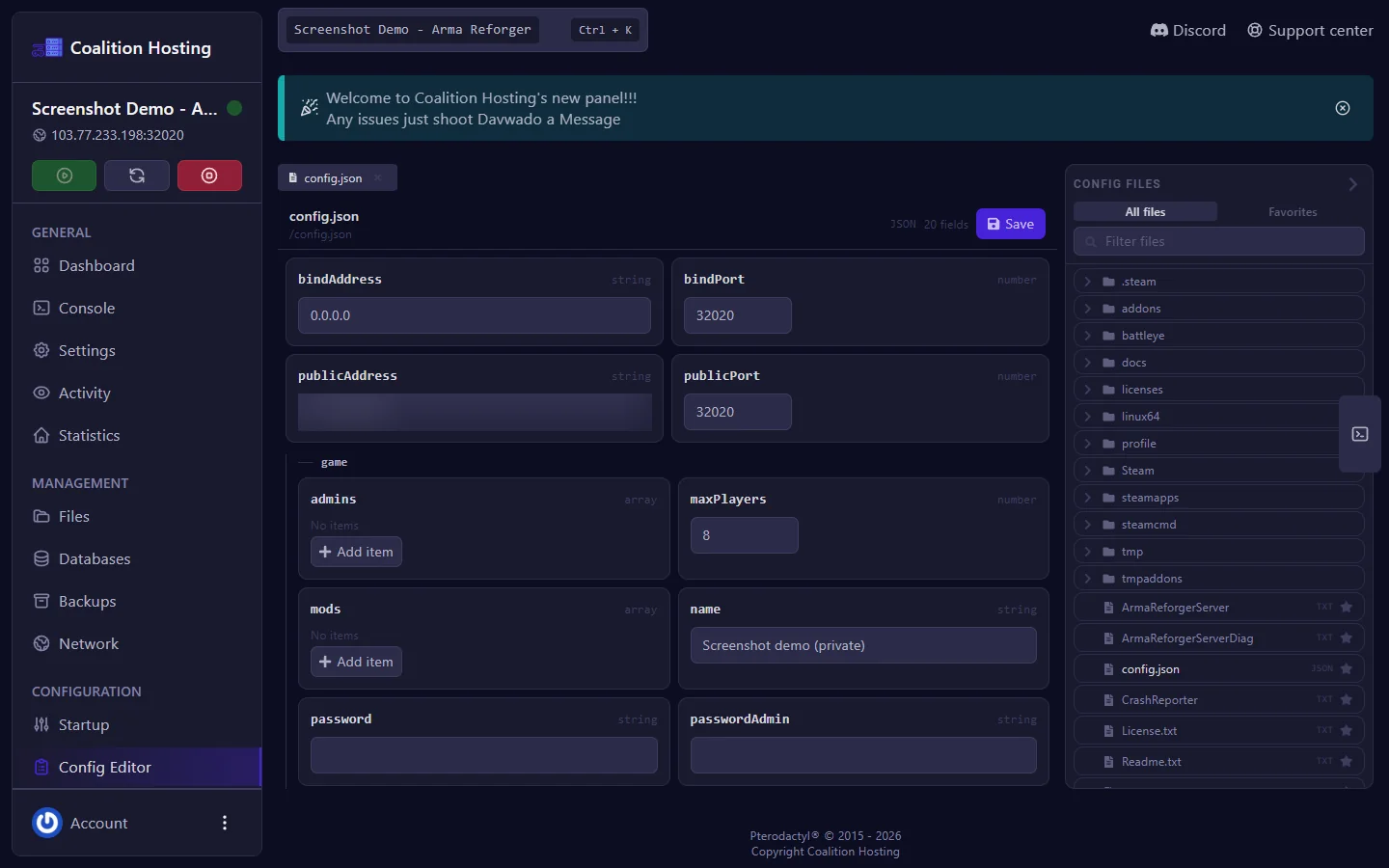
Edit settings in fieldsOpen a config file and change its values in a form instead of raw text.
Favourites and filterStar the files you use most and filter the file list by name.
Raw editingThe file manager edits any file directly.
Players
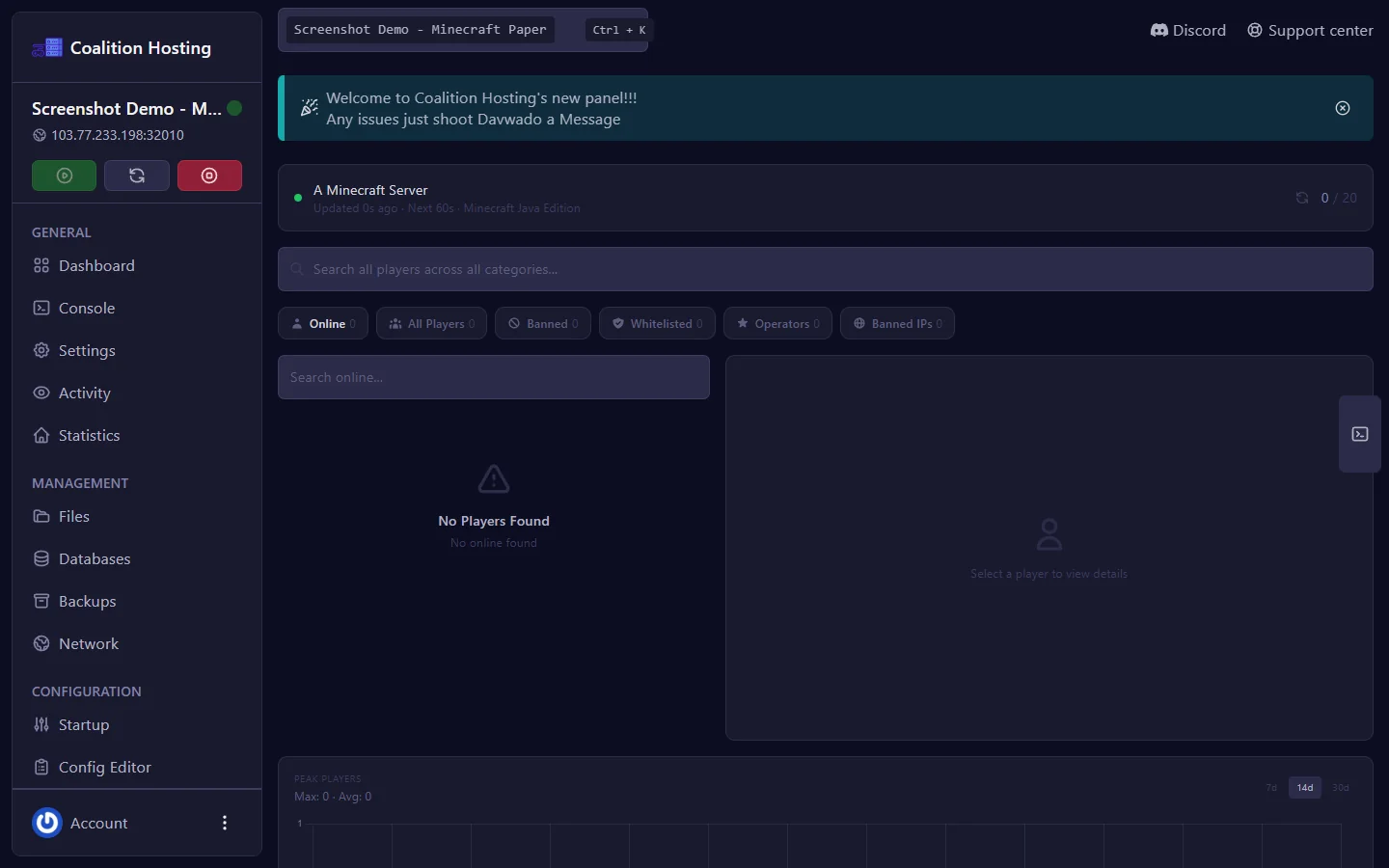
Who is onlineSee the players connected to your server right now, with a live count.
Bans, whitelist and operatorsOn Minecraft the page also lists banned players, the whitelist, operators and banned IPs.
Peak playersA 7, 14 and 30 day chart of your busiest times.
Startup and settings
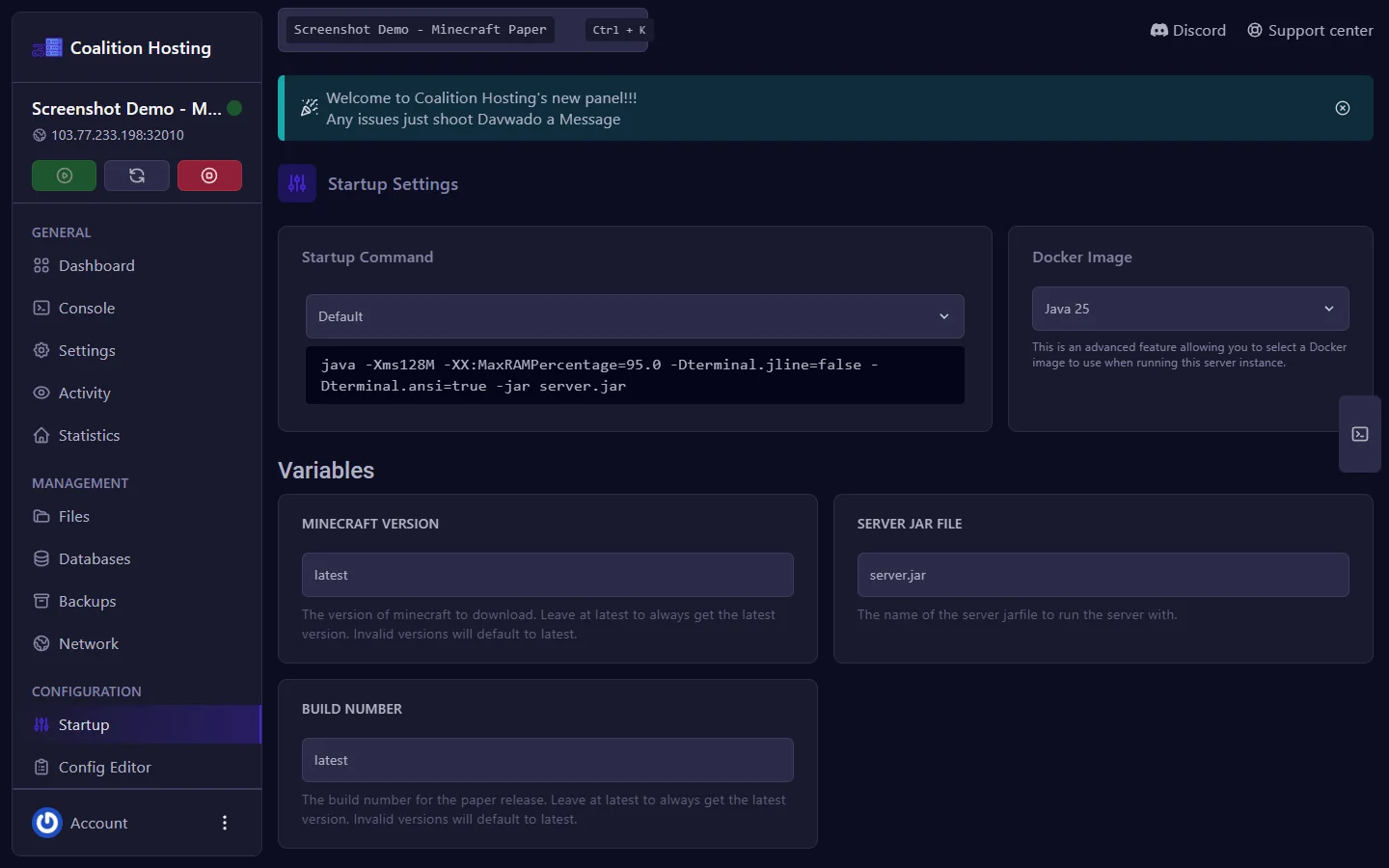
Startup variablesView the launch command and change the options the game exposes, such as map, player limit and password.
Server settingsRename the server and view your SFTP details.
ReinstallRun a clean install of the game. This can overwrite files.
Schedules
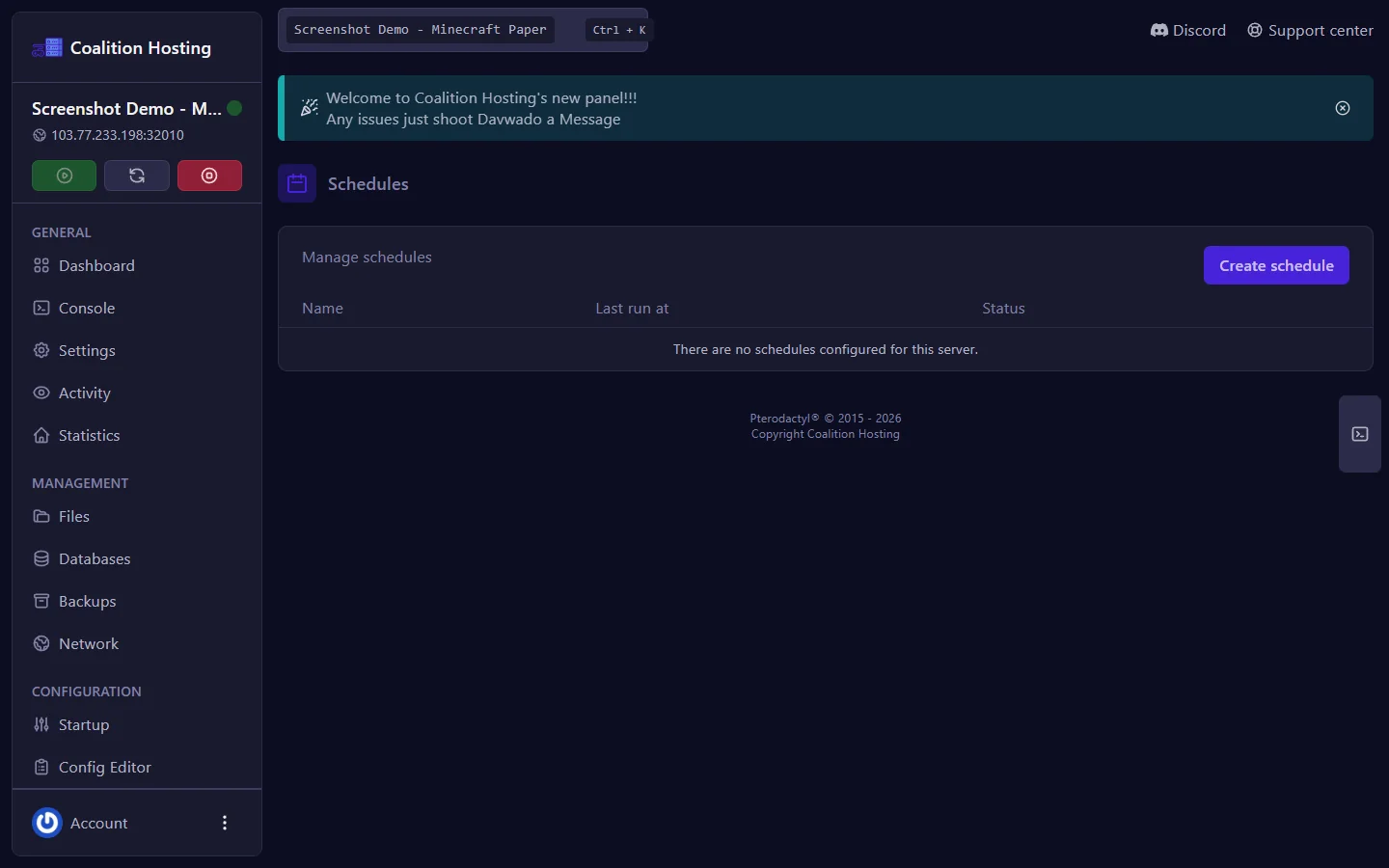
Timed power actionsRestart nightly, or every few hours.
Timed commandsSend a server message 10 and 5 minutes before a restart.
Task chains with delaysRun several tasks in order, with a wait between each.
Run nowTrigger any schedule manually.
Staff access
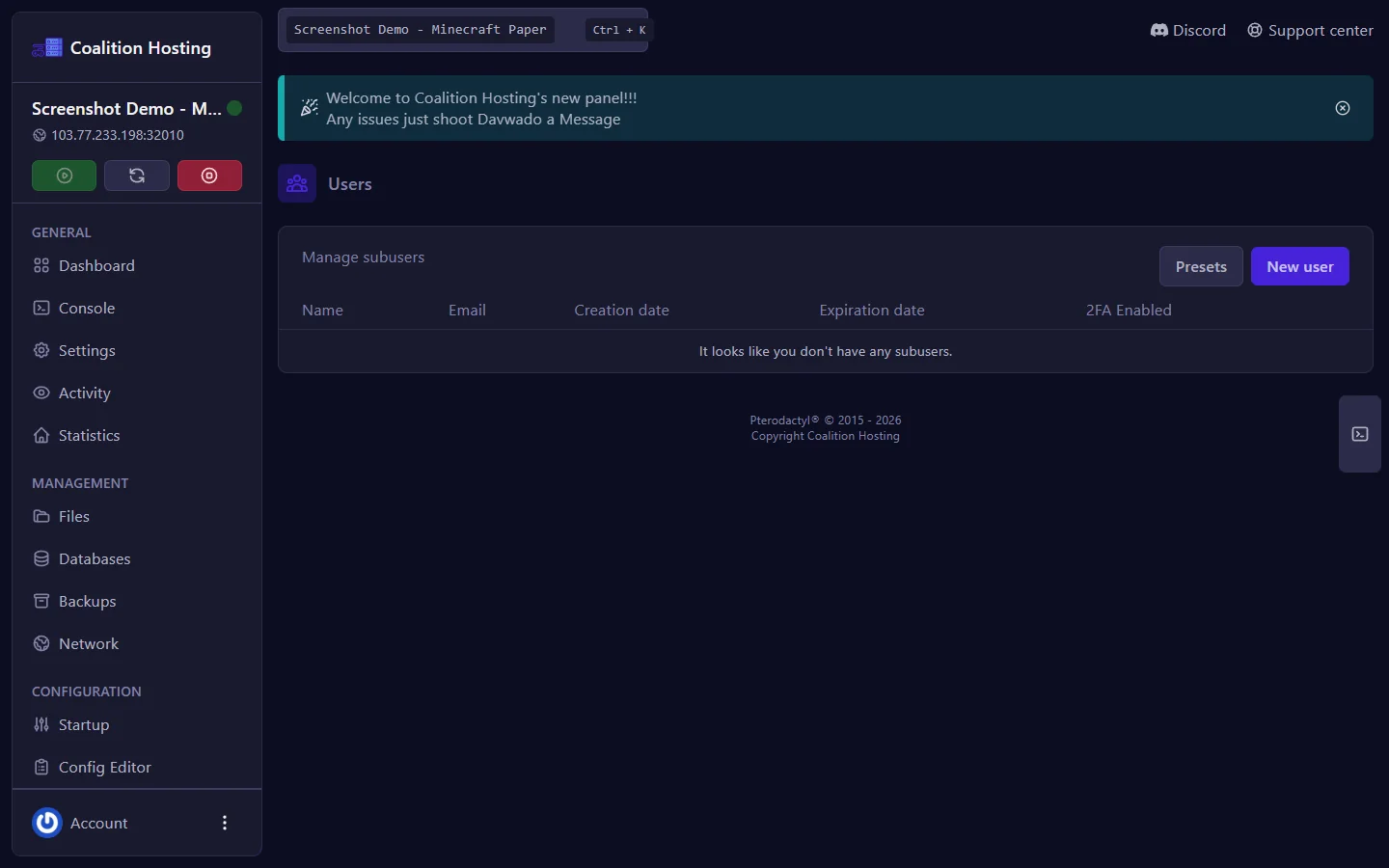
Separate loginsAdd admins and moderators to your server. Each uses their own account.
Per-person permissionsChoose what each person can do: console, files, startup, schedules, databases and more.
Instant removalAccess ends the moment you remove someone. The activity log keeps the record.
Ports
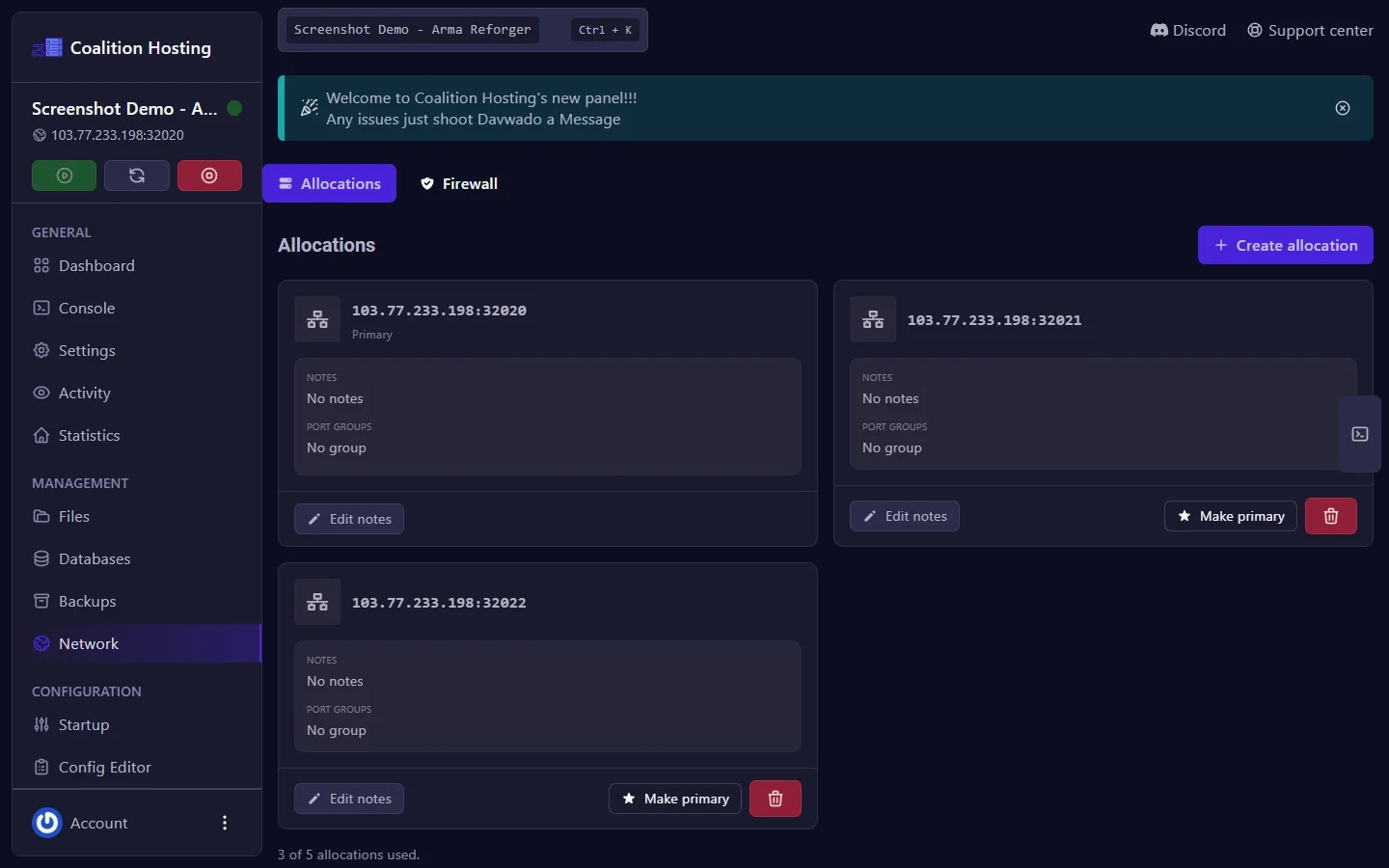
Address and portsSee every port your server uses and copy the address.
Add and remove portsUp to the allocation limit on your plan.
Primary portChoose which port is the main connection.
Databases
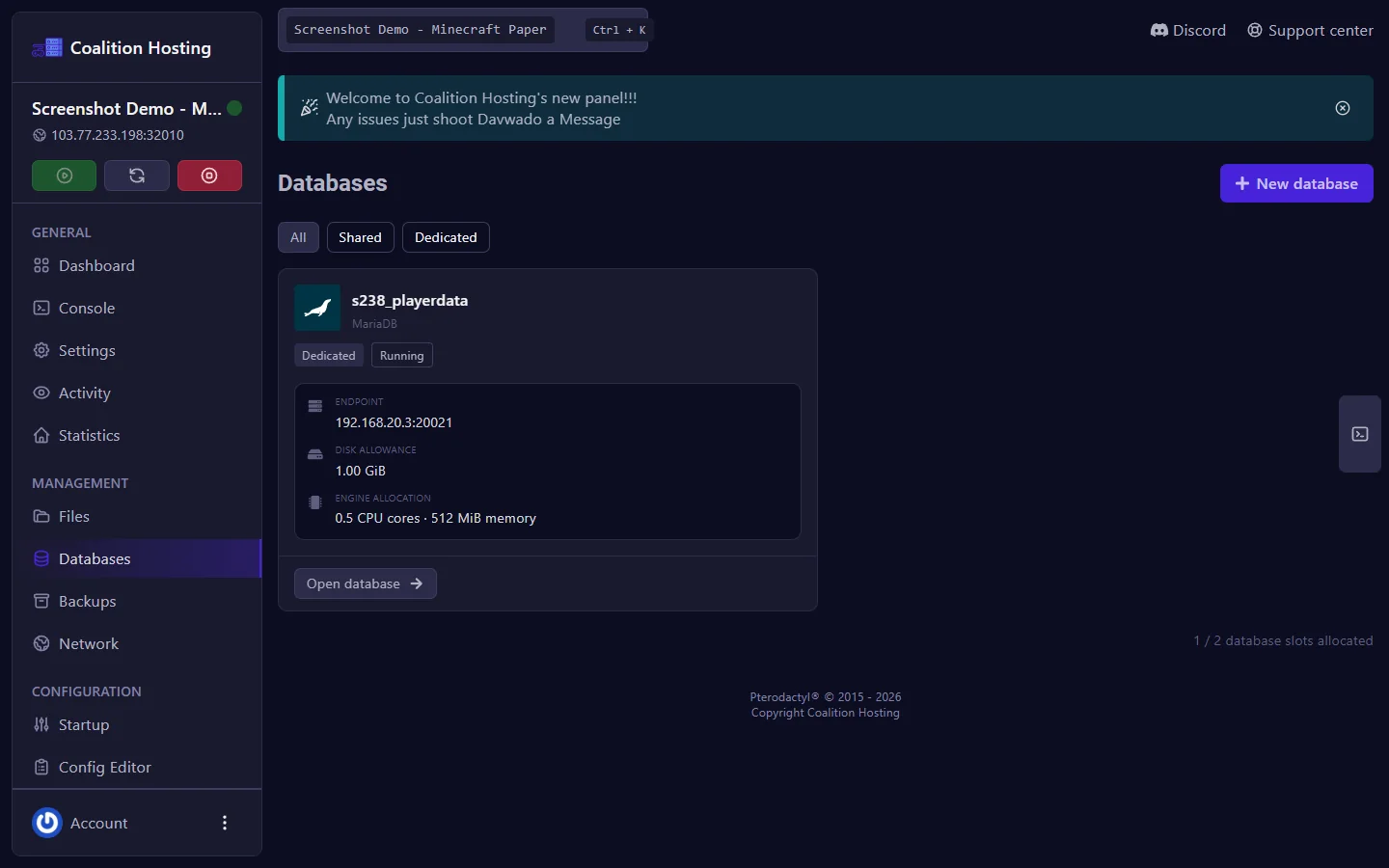
Create databasesFor mods and plugins that store data in MySQL or MariaDB.
Connection detailsHost, username and database name in one place, with a password reset.
Per-server limitThe number of databases is set by your plan.
Server importer
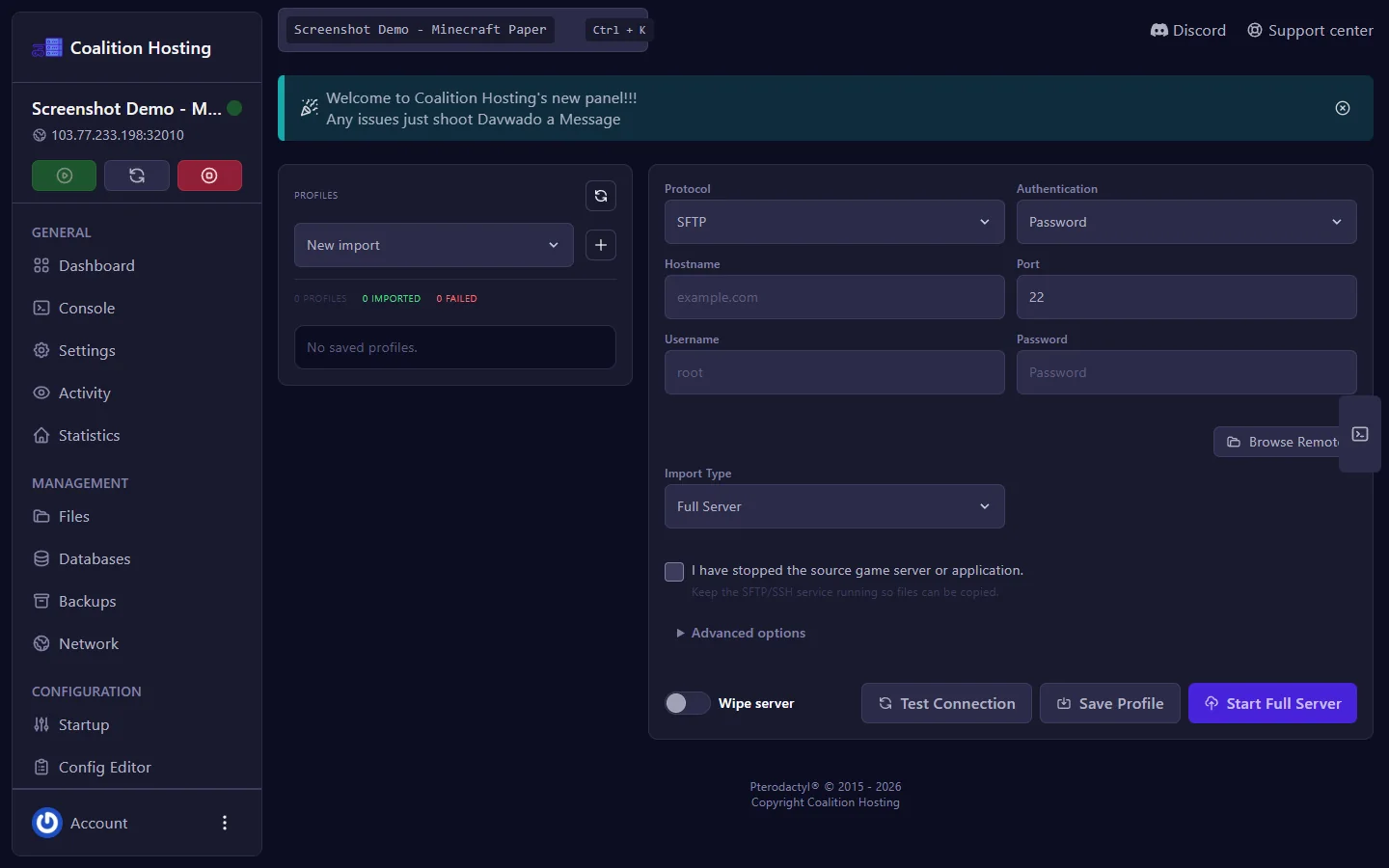
Import from your old hostBring an existing server's files into your new one.
Or use SFTPDownload from your old host and upload to ours with the same client.
Questions
Do I need to install anything?
No. The panel runs in your browser. SFTP needs a client such as FileZilla.
What do I do if the server freezes?
Press Kill on the console page, then Start.
Where is my SFTP login?
On the Settings page of your server.
Can my staff manage the server without my password?
Yes. Add them under Users and set their permissions.
Are servers isolated from each other?
Yes. Each server runs in its own container with its own memory and disk limits.